Delete a booking
Last updated 23 September 2026
You need the club administrator role for the club the booking belongs to. Anyone can see the bookings list, but only administrators see the delete button and the guest's email and phone columns.
Deleting a booking frees the room for those dates and emails the guest to tell them it's cancelled.
Step 1 — Open the bookings list
Go to Accommodation and choose the View bookings tab. The direct link is /accommodation/bookings.
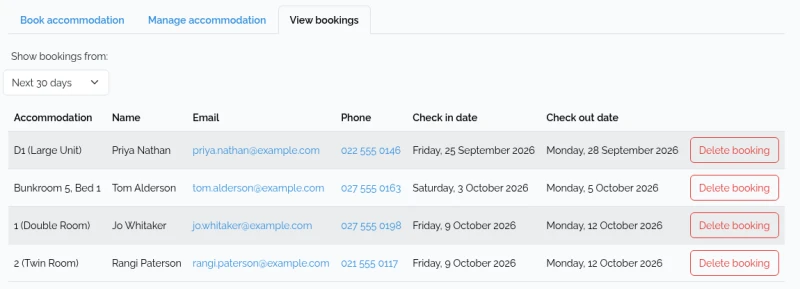
Step 2 — Find the booking
The list starts on Next 30 days, so a booking further out — or one already past — won't be there. Use Show bookings from to widen it:
- Past 12 months
- Past 30 days
- Next 30 days
- Next 12 months
- All time
Bookings are ordered by check-in date and paged 50 at a time.
Step 3 — Delete it
Click Delete booking on the row. A confirmation box names the guest, the room, and the dates — read it, because there's no undo.
Step 4 — The guest is emailed
A cancellation email goes to the address on the booking as soon as it's deleted, telling them which room and dates were cancelled and to contact the club if that was unexpected. It's automatic and can't be suppressed, so if you're cancelling on the guest's behalf, tell them to expect it.
Deleting a booking you need to replace
Cancelling and rebooking is how a booking gets changed at all — see change a booking for the order to do it in.